Visually Impaired Persons Guide

Vips Guide is created for blind and visually impaired persons to provide them easy access to knowledge and entertainment in the form of audio books, tutorials, walkthroughs and informative videos on different topics, ranging from education to entertainment, health to technological advancements, fiction to current affairs and disability awareness to general knowledge etc.

Showing posts with label Assistive Technology. Show all posts

11.7.20

A complete list of android accessible games for blind and visually impaired | Part 4


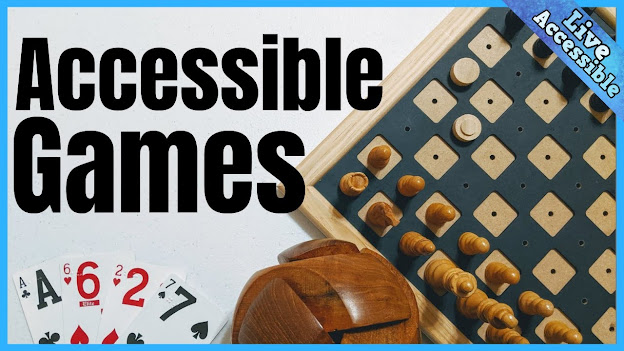
Today I'm going to share a complete list of Android accessible games for the blind and visually impaired players. This is part 4 of this series. you may also like part 1, part 2 or part 3. Accessible games are specially designed for the people with disabilities, fully supported with screen readers or games are equipped with their own accessibility features.
Unlike video games, accessible games use sounds or text labels for different actions, events, objects and game controls. Following is a complete list of accessible games to play with your Android device.

Choice of the petal throne

Designed by Choice of games LLC, Choice of the petal throne is an interactive fictional novel written by Danielle Goudeau where your choices control the story. You play the role of a captain in one of the armies of tsolyani empire whose princes and princesses are vying for their father’s throne and thereby waging  the civil war in the kingdom. You can choose your gender and play as a brave forthright soldier, a self-indulgent intriguer or a devious double agent.
Use multiple weapons against your rivals from sword-craft to strategy and sorcery. Tons of choices to make! This is a complete text-based game without graphics and sounds completely compatible with screen readers.

Creature such as we

Creature such as we is another role-playing/interactive novel authored by Leigh Alexander and designed by Choice of games LLC. The game was awarded with second place in 20th annual interactive fiction competition. It is all about romance, video games, nature of the art and life on moon. Like other interactive novels, you can play as a male/female or choose to be romantic or stick to your professionalism.
The game is completely text-based without sounds and graphics with complete screen reader support. Enjoy living on the moon alone and don’t be afraid!

D&D style medieval RPG (choice game)

D&D medieval RPG is a series of text-based interactive stories by Delight games. Play a wizard, a succubus, a ranger and a rogue in this game. There are hundreds of achievements to uncover and ability to go back on your choices out of suspense. Your choices will control your stats and bad stats can cause instant death.
The game is equipped with all the features of a good interactive game such as gender inclusiveness, romance, suspense, war, a lot of choices and screen reader support.

Dark unknown planet

Designed by better.apps, dark unknown planet is an interactive text adventure game originally written by barrie Eaton in 1987. Your goal is to survive on a dark unknown planet where your ship was crashed and your fuel tank has been ruptured and empty. Repair your tank, find fuel and fresh water to escape this planet. The game has graphical inventory system and automap to track your location.
There are two styles to play: play the game just by tapping the screen or play by using keyboard. Also, you can use gestures to navigate through the map. The game has several accessibility features for blind and visually impaired players including speech input to issue commands, ability to read text aloud  and font adjustments.

Detective’s choice

Written by William miller, Detective’s choice is another choice-based interactive game by Delight games where You play the role of a detective named Jack Jericho but you are not a normal defective investigating routine affairs. You have to inspect psycho-killers, the mob and the sorcerers. Your goal is to survive the dangers, collect the money and satisfy your detective nature.
Achieve high/rank by making the reasonable choices. Screen readers are completely supported fulfilling the diverse needs of persons with disabilities.

Dice in dark

Dice in dark is an open source project currently available in beta version. It is a tiny nice dice rolling game with the text to speech support for the blind and vision impaired. Simply select the dice by using left or right gestures, shake the phone to roll and results will be read out. You can increase the number of dice in a roll by scrolling up. Available dice are D4, D6, D8, D10, D12, D20 and D100.

Dice world – 6 fun dice games

Dice world is a package of six dice games including Markle, Yatzy, Threes, 1-4-24, Balut and Pig. You can play this game with anyone, anytime and anywhere around the world. It supports multiple styles of gameplay: single player mode, play against funny computer players, random opponents, friends or play in tournament mode. Also, you can play multiple games against more than one player at a time.
Dice world comes with many different user-friendly options and features such as tern-based gameplay, detailed help for each game, online score/leaderboards, chat during gameplay with audio option, track your opponent’s country/state and finally 100 percent talkback accessible!

DroidFlip

DroidFlip is a completely audio-based game without graphics and text labels. It has very simple gameplay, just listen the instructions carefully and follow them as quickly as possible without a single mistake. If you are too slow or perform one move incorrectly, your game will be over. As you progress through the game, the speed will get increase and game become more challenging.
Interesting game’s features include, CD quality sound effects, Unlimited gameplay, no ads or in-app purchases and suitable for both adults and children. Using headphones during gameplay provides you much better experience.

Engkwentro

Develop by Khid Zalameda, Engkwentro is one of the games especially designed for blind and visually impaired gamers but can be enjoyed by those who want to have auditory experience of entertainment. The story revolves around a blind man whose wife has been taken by a creature of darkness. despite of his blindness, the man struggles to save his wife from this evil creature. Could you fight for your love? If yes, this game is for you. enjoy!

Fear

Feer is a horror game equally enjoyable for both sighted and non-sighted players. Winner of several awards, Feer provides you with a stunning experience while running in between zombies and fairies. Your job is to kill the zombies but save the fairies, otherwise you become blind and run in the dark. According to the developer, “only those with the best ears can survive in this dark world or can save the fairies life”
The exciting features of the game include, multiple weapons to shoot the zombies, boosts to increase your speed and light, shield for your protection, online score/leaderboard and screen reader support, yes, the game is completely accessible with the screen readers.
If you like this post, don’t forget to subscribe our blog or like our Facebook page for more amazing content.
7.7.20

A complete list of android accessible games for blind and visually impaired | part 2


Today I am going to share a complete list of Android accessible games for the blind and visually impaired players. This is part 2 of this series. you may also like part 1 or my previous post COVID-19 and blindness. Accessible games are specially designed for the people with disabilities, fully supported with screen readers or games are equipped with their own accessibility features.
Unlike video games, accessible games use sounds or text labels for different actions, events, objects and game controls. Following is a complete list of accessible games to play with your Android device.

Alt-frequencies

Developed by Plug in digital, Alt-frequencies is an audio game where player use airwaves to expose the reality of conspiracy theorists, politicians, radio hosts, underground activists and a dog with the help of records, rewind time and broadcasts snippets of radio shows. This distribution of information causes a great commotion amongst news circles and public figures. The game emphasizes on our relationship with mainstream media through the medium of radio.
The game uses 20+ professional voices of Podcasts, TV and YouTube personalities. Its build-in accessibility features make the game completely accessible for the vide variety of players including blind and visually impaired.

A tavern for tea

Develop by NPCKC, A tavern for tea is an interactive novel where your choices control the game. The story revolves around a tavern located at the border of an area serving as a boundary between demons and humans. You will play as owner of the imaginary tavern and help yourself to serve the tea that your customers don’t know they need it.
Screen readers are fully supported, so Blind and visually impaired players can use their screen readers to play the game.

Backgammon game justgammon

Justgammon is a backgammon game with many options and features. It supports multiple modes such as single player mode, two players on a same device, against computer's AI, or two bots’ demonstration. Simply click a checker to take it in hand and click a position on the board to put it according to the throne dice. Long press a checker to remove it.
It has a lot of features such as different sounds for different actions, statistics for a game and for all games played, various customizable settings and others. It is completely compatible  with google talkback or other screen readers.

Baby adopter

Designed by x2line, Baby adopter is a role-playing game for those who love to take care of little babies. You will adopt a cute little baby. Your goal will be to feed the baby when hungry, buy shoes, cloths, toys and take care of your baby !
Also, explore your surroundings and purchase items for baby’s room, bathroom, playground, family room, play center, music room and others. Furthermore, hunt, find, collect and complete the collection of mini trophy creatures. The game is completely accessible for the persons with vision impairment.

Blind cricket

Blind cricket is especially designed for blind and vision impaired android users by Sonnar Interactive LTD. The game has a simple and easy to explore interface with various accessibility features. It is first accessible cricket simulator with realistic sounds and indicators. You can play at your own or with teammates to make it to top from school level to international cricket.
You can also play with your friends to see who finishes on the top. turn your screen readers off before playing.

Blind mini game

Blind mini game is a collection of different audio games develop by Al Karrada App studio. The game is completely free without ads or in app purchase features. The App has a simple and interactive interface with build-in accessibility features. You have to switch off your screen reader before playing the game.
Blind mini game is currently offering 8 different games including the directions game, the memory game, the animal’s game, the tones game, the runner game, the hearing test, the check numbers and the fast numbers.

Blind samurai

Blind samurai is a classic action game develop by Chad Elliott Fahlman. you will face various enemies, epic boss fights and endless action with progressive difficulty. The game has 5 difficulty levels and your rival samurais become more faster each level. It is one of the few games that can be played by both sighted or non-sighted players.
It is recommended to play blind samurai with headphones because this  game heavily rely on 3d sounds to observe your enemy’s position and distance. The game comes with its own accessibility features and easy to explore interface.

Blind simone game

The blind simone game is a mini game especially designed for blind and visually impaired users by Asylum Bound Games LLC. It is just like ordinary simone game but comes with build-in accessibility and user-friendly interface. The game will provide you with verbal or audio cues for each step. Simply tap the game’s icon, turn off your talkback and enjoy.

Blind court rung

Blind court rung is an audio version of classic game court piece. This game is very popular in India and Pakistan. It is a multiple players game or can be played against computer AI. It is completely compatible with Google talkback or with any other screen reader.

Blindie match

Blindie match Is all about swapping tiles on the board to make a straight line of 3 or more same colored gems. You have to destroy a specific number of gems each level. Every swap cost you one move and if you run out of moves you will lose the game. The game has 3 difficulty level: easy, medium and hard.
Both sighted and visually impaired players can play this game. Turn off your talkback before playing. If accessibility doesn’t start automatically, tap the screen 3 times with 3 fingers to on/off accessibility mode.
If you like this post, don’t forget to subscribe our blog or like our Facebook page for more amazing content.


5.7.20

A complete list of android accessible games for blind and visually impaired | part 1


The main pic


Today I am going to share a complete list of Android accessible games for the blind and visually impaired players. You may also like my previous post COVID-19 and blindness. Accessible games are specially designed for the people with disabilities, fully supported with screen readers or games are equipped with their own accessibility features.
Unlike video games, accessible games use sounds or text labels for different actions, events, objects and game controls. Following is a complete list of accessible games to play with your Android device.

Fifteen-puzzle


Fifteen-puzzle


Developed by DigiXmas, Fifteen-puzzle is completely accessible for the Google talkback users. "It is a sliding puzzle that consist of a frame of numbered square tiles in random order with one tile missing. The object of the puzzle is to place the tiles in order by making sliding moves that use the empty space. This is a part of Pinocchio game collection: a collection of accessible games."
Use left and right gestures to move around the tiles. Double tap the tile next to empty space to move the tile on an empty square.

A blind legend


A blind Lagend


Developed by Dowino with the help of A French radio station, blind legend is a first mobile adventure game for blind and visually impaired or for anyone wants to have sensory experience of an audio action game. You will play as a blind knight Advert Blake guided by your daughter Louise. You must have to find your way amongst different traps while fighting dangerous enemies.
The game has its own accessibility features, sounds and indicators for different events and places. You have to Turn the talkback off before playing.

Academy of disaster


Academy of disaster


Developed by Hosted games, academy of disaster is an interactive novel by Maxine Janerka where your choices control the story. It is completely text-based game without graphics and sounds. In this game, you have to investigate your classmate's murder, fall in with the mob and dig through your family's shadowy past.
You can choose how to investigate or play as a male or female. All the buttons and game controls are properly labeled so you can Use your normal Talkback reading gestures to play the game.

Accessible goose game


Accessible goose game


Develop by Fabian Arias, Accessible goose game is a legendary game of tables played with chips and dies. The computer will choose a random opponent from internal database. The game is that the geese compete to get first to the farm.
The players throw the dice, and the number they touch will be the boxes the goose will move. In each box you will find prizes and punishments, good or bad luck. All kind of adventures in the field. To reach the goal they have enter with right number of dice. If a larger number is issued, the remaining boxes must be returned.

Accessible memory


Accessible memory is designed by David Nemeth for those who want to improve their memory. You can enhance your memory by searching different pairs of cards. The player will Choose between different numbers of cards and types of pairs. Currently, there are four table sizes are available to choose from: 3x4 and 4x5 for all supported devices and 5x6 and 6x6 for larger screens only.
Also, you can choose your cards with different colors, numbers, sound effects and pictures. Accessible memory is a multi-lingual application supporting English, French, German, Hungarian, Italian, Portuguese and Spanish. All the provided functions of game are completely accessible for the talkback users.

Accessible tennis game


Accessible tennis game


Developed by Fabian Arias, Accessible tennis game is a sports game adapted for the blind and visually impaired. Real human voice will instruct you while playing. Explore your screen to detect the ball and hit with your racket.
You will play with your opponent like a professional court. Hundreds of fans will be there to cheer you up and take you by the game.

Audio game hub


Audio game hub


Develop by Sonnar Interactive LTD, Audio game hub is  a set of experimental audio games that use audio as their primary interface. It is designed for both sighted and non-sighted players. It provides a medium to develop and improve motoric, auditory and memory skills by training players in an amusing and motivating way.
It includes several games such as animal escape, bomb disarmer, super Simon, blackjack, slot machines, archery, hunt, samurai, animal farm, blocks and others. The game does not support talkback but it  has its own accessibility features, sounds and audio indicators for the blind and visually impaired players.

Audio speed


Audio speed


Audio speed is a high-speed racing game where pilots race not cars but starships on different orbital tracks with high gravity, hyperspatial acceleration and hazards such as nebulae. You can choose between single race and tournaments modes. In single mode you can race on your favorite track out of five.
Remaining two tracks are available in tournament mode only. Also, you can choose your favorite starship with different acceleration, speed, maneuverability armer and robo-navigator. The game is completely supported with Google talkback.

Audio Game: Wizard's Choice


Audio Game: Wizard's Choice


Develop by Delight Games, it is an audible version of the first volume of wizard's choice, the popular and beloved text adventure game. It was recorded by professional voice actor, Matthew Posner. It is a simple but addictive game. You will play a wizard in this interactive novel, set in a medieval fantasy world.
You will Struggle to Stay alive, manage your spell power, find treasures, and smite evil. It is a series of RPG interactive novels that will engross you in a story while allowing you to make the decisions that will determine your fate. You can easily play the game with your regular talkback reading gestures.

AudioWizards: accessible audio game


AudioWizards: accessible audio game


Develop by MyTrueSound Oy, AudioWizards is an arcade action game with two different modes. you can decide to play story mode to embark on an audiotastic journey to defend the world of Sondveiw. You have to master the sounds to defeat the elemental imbued monsters together with your guide Sondaman. The game contains 20 fully voice acted story levels.
If you are Not in the mood of a story, you can Challenge yourself and your listening skills in the endless challenge mode to strive for the highest score and crown of master wizard. Google talkback is not fully supported with the game. Turn off talkback while playing, the game has its own accessibility features automatically turned on during start-up.

If you like this post, don’t forget to subscribe our blog or like our Facebook page for more amazing content.

7.5.20

How to use Google classroom with JAWS, step by step guide for students

Today we are going to discuss Google classroom’s accessibility for students. You may also like how to use Google classroom with JAWS, step by step guide for teachers.
Google classroom is an online educational platform to create, distribute and grade assignments in a paperless way. Various Google products are incorporated in Google classroom to easily arrange different educational activities such as Google drive, Google calendar, Google docks and Gmail etc.
Students can submit their assignments online to be graded by the teachers. Likewise, teacher can share materials, monitor students' progress, review their assignments and return to them along with comments and instructions.
As you know Corona pandemic caused regular school activities to be shut like many others, Google classroom provides a great solution in this situation. In this post, we are going to provide a step by step guide of how to use Google classroom with JAWS for students with no vision and their trainers and teachers.

Login for Google classroom

Use your Gmail account to login for Google classroom or if you are already login, press insert+f5 to bring a list of available form fields on this page and hit enter on continue button. You will land on Google classroom's main page.

Classroom main menu

Press b to move to the classroom main menu button, space to activate the menu and then press up and down arrow keys to choose from different available options and press enter.
Here you can switch between your different classes, see your class calendar and modify main settings.

Joining your first class

1.      Press B to move to the create or join a class button menu, press space to expand this menu and choose join class.
2.      Type class code provided by your teacher.
3.      Click join class button.

Stream

Here you can communicate with your class, see your class' announcements and respond to teacher's posts.
1.      Press JAWS key+f7 on newly joined class page to bring the list of available links and hit enter on stream.
2.      Press b to move to the share something button and press space to activate.
3.      Type what you want to share.
4.      Press tab to move to the add button menu if you want to attached something to your announcement such as a link, YouTube video, document or a file.
5.      Press enter on post button.

Class work

Here you can view your class work, calendar, class drive folder and list of your completed assignments and class works.

How to submit your assignments

1.      Press b to move to the classroom main menu button, press space to expand menu.
2.      Choose to-do and press enter. You will see a list of your uncompleted assignments and class works.
3.      Press enter on the assignment you want to work on. You will find complete details of selected assignment along with your teacher’s instructions.
4.      Press b to move to the add or create button menu and press space.
5.      Use up and down arrow keys to choose what you want to create or attached with your assignment such as links, files, Docs, Sheets, or drawings etc.
6.      Press enter on turn-in button after attaching all the files to your assignment.
7.      A confirmation dialogue box will appear, press enter on turn-in to confirm.
Note: If you have mistakenly turned in your assignment, you can click unsubmit button to add or modify your work. Also you can add a private comment as well.
If you like this post, subscribe our blog for more amazing content or join our Whatsapp group or like our Facebook page.

How to use Google classroom with JAWS, step by step guide for teachers

Today we are going to discuss Google classroom’s accessibility for teachers. You may also like How to use Google classroom with JAWS, step by step guide for students.
Google classroom is an online educational platform to create, distribute and grade assignments in a paperless way. Various Google products are incorporated in Google classroom to easily arrange different educational activities such as Google drive, Google calendar, Google docks and Gmail etc.
Students can submit their assignments online to be graded by the teachers. Likewise, teacher can share materials, monitor students' progress, review their assignments and return to them along with comments and instructions.
As you know Corona pandemic caused regular school activities to be shut like many others, Google classroom provides a great solution in this situation. In this post, we are going to provide a step by step guide of how to use Google classroom with JAWS for students with no vision and their trainers and teachers.

Login for Google classroom

Use your Gmail account to login for Google classroom or if you are already login, press insert+f5 to bring a list of available form fields on this page and hit enter on continue button. You will land on Google classroom's main page.

Classroom main menu

Press b to move to the classroom main menu button, space to activate the menu and then press up and down arrow keys to choose from different available options and press enter.
Here you can switch between your different classes, see your class calendar and modify main settings.

Creating your first class

1.      Press B to move to the create or join a class button menu, press space to expand this menu and choose create class.
2.      Press tab to move to the checkbox (If you are using Google classroom at a school with students, your school must be signed in, otherwise check the checkbox in the create a class dialogue box.) press tab again and hit enter on continue button.
3.      Your focus will be on Class name edit box, type your class name, press tab and type your class section, press tab again and type subject and then room number.
4.      Press tab until you here create button, press spacebar to activate this button.

Class settings

1.      Press class settings button on the newly created class page.
2.      Press JAWS key+f5 to bring the list of available form fields.
3.      Choose the field you want to change and press space to activate.
4.      Type important information like class name, description, section, room number etc or press up and down arrow keys to choose from different available options.
5.      Press save button.
Note: Don't press escape until you want to leave these settings.

Stream

Here you can communicate with your class, create and schedule announcements and respond to students' posts.

1.      Press JAWS key+f7 on newly created class page to bring the list of available links and hit enter on stream.
2.      Press b to move to the share something button and press space to activate.
3.      Type what you want to share.
4.      Press tab to move to the add button menu if you want to attached something to your announcement such as a link, YouTube video, document or a file.
5.      Press enter on post button.

Class work

Here you can view calendar and class drive folder, assign class work to the students, create/schedule assignments and organize class work in different units and modules.
1.      Press JAWS key+f7 and press enter on class work.
2.      Press enter on create button menu.
3.      Choose what you want to create: assignment, quiz assignment, topic or material.

People

Here you can invite new teachers and students to join your class. Also you can Email, mute or remove any student/teacher.

1.      Press JAWS key+f7 and then press enter on people.
2.      Press enter on invite teachers/student button.
3.      Type teachers/student name or Email.
4.      Click invite button.
Note: you can also provide class private code to your students to join your class.

How to arrange students

1.      Press t to move to the table containing students' names.
2.      Check the checkbox attached to the student's name.
3.      Press enter on option for student button.
4.      Choose email, remove or mute.

Grades

Here you can view, grade and return students' work.

1.      Press f7 and then enter on grades.
2.      Press enter on no grade below the student name you want to grade.
3.      Type obtain marks and hit enter.
4.      Click action button menu below the obtain marks.
5.      A dialogue box will appear, type your comments about the student's work and press return button.
If you like this post, subscribe our blog for more amazing content or join our Whatsapp group or like our Facebook page.